Application Control
Overview
Application Control is used to block various applications in the Crystal Eye XDR network. There is a list of applications that can be banned which are classified under various categories such as Arts & Entertainment, Mail, Messaging and Forums, News, File Sharing, Shopping, Social Media, and Technology. The Crystal Eye XDR administrators can also Whitelist an IP Address to access an application.
Gartner Peer Reviews
 Explore more Red Piranha Customer Reviews on Gartner Peer Insights
Installation
The Application Control feature is not available by default. It can be installed from Marketplace in the left-hand navigation panel.
Navigation to Application Filter
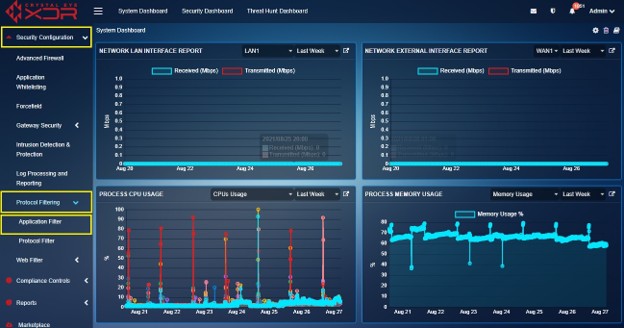
Left-hand Navigation Panel > Security Configuration > Protocol Filtering > Application Control !
Block Applications
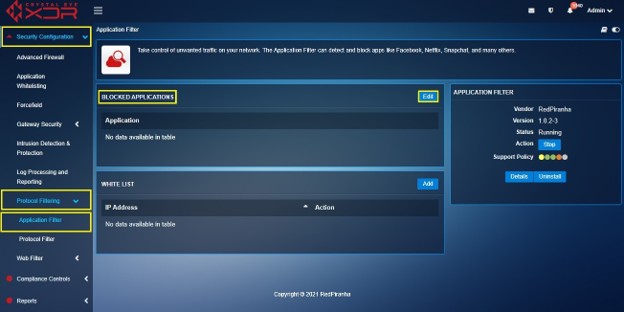
The Block Applications filter can be used to select the applications that are required to be blocked.
Step 1: In the Application Filter application page, click the Edit button under the Blocked Application section
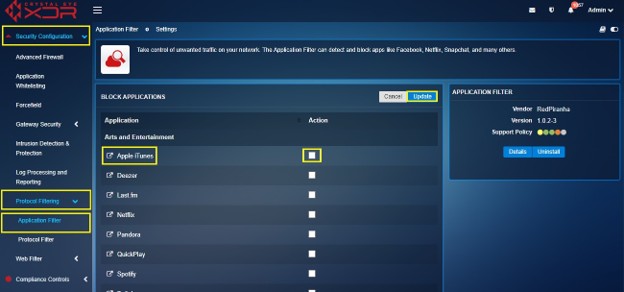
Step 2: You will now see the Block Application section. Click the tick box positioned against the application that needs to be blocked and click the Update button.
Creating a Whitelist
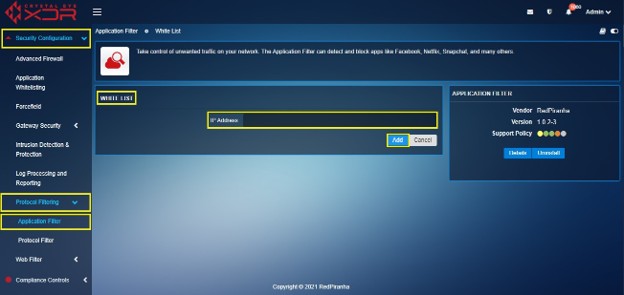
The Crystal Eye XDR administrators can easily whitelist the application or website by adding its IP address to the whitelist section.
How to Create a Whitelist of IP Addresses Using the Application Control?
Step 1: In the Application Filter application page, click the Add button of the Whitelist section.
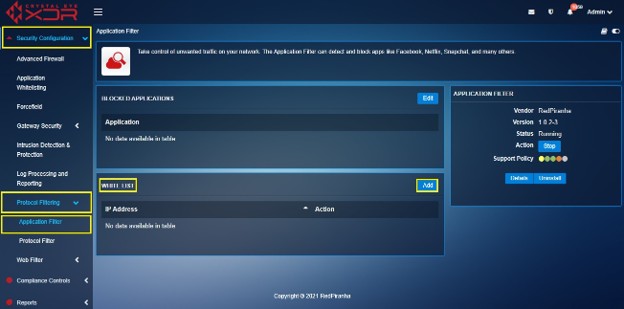
Step 2: You will now see the Whitelist section. Enter the IP Address in the IP Address textbox and click the Add button.
Crystal Eye's Secure Web Gateway (SWG) helps protect users from web-based threats, enforces web access policies, and ensures compliance through integrated filtering, blocking, and monitoring tools. This guide provides step-by-step instructions to help end users configure and manage the SWG effectively.
Creating Application Control Profiles
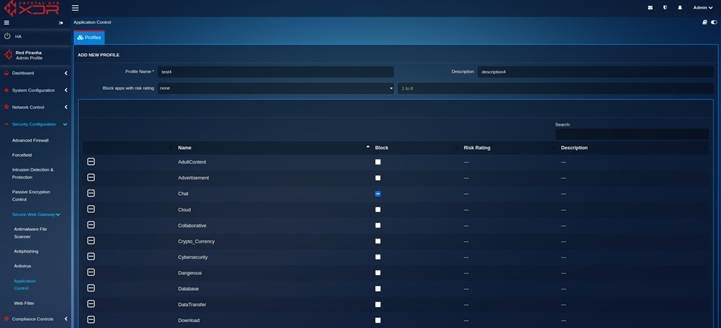
- Open the Application Control app.
- Click Add Profile.
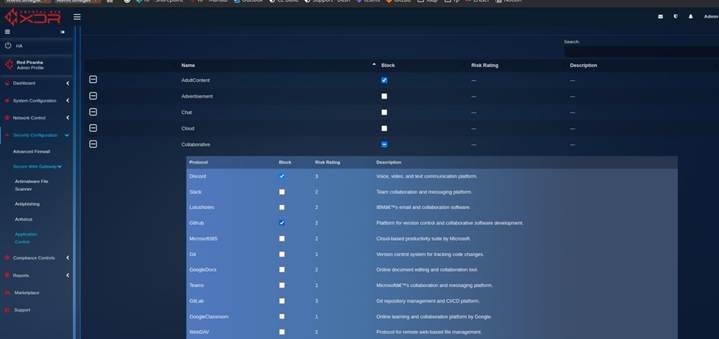
- Fill in the following: Name: A unique name for the profile (e.g., "Block Social Media"). Description: A short explanation (optional). Block By: Choose "protocols" to block specific applications. Choose "risk_rating" to block apps based on their risk score (1-5). Blocked Applications: Select from predefined apps if "protocols" was chosen. Risk Rate: Select a number between 1 (low) to 5 (high) if "risk_rating" was chosen.
- Click Save.
Applying Profiles in Advanced Firewall
- Navigate to Advanced Firewall > Traffic Rules.
- Click Add Rule.
- Set the rule parameters: Source/Destination IPs or user groups (SSO-integrated). Under Target, select Application Control. Choose the Application Control profile created earlier.
- Click Apply to enforce the rule.
Viewing Block Reports
- Go to Threat Hunt Dashboard.
- Locate the Application Control Blocks table.
- Use filters to refine data by date, source IP, destination IP, and port.
Logging and Audit Trail
All policy changes are recorded.
Go to Log Viewer to view config update history.