Risk Auditing
Overview
The Risk Auditing Application is powerful and unique tool designed by Red Piranha team for fast, accurate and compliant asset-type based risk assessment.
The Risk Auditing feature of the Crystal Eye XDR uses network mapping and tagged devices to enable users to choose the asset type (Network, Data, Software, Users, Devices, and Documentation) and corresponding assets in the selected asset type.
Installation
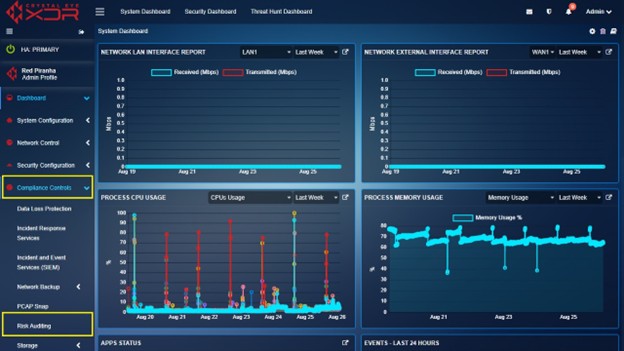
The Risk Auditing app is installed by default and can be accessed from the left-hand navigation panel.
Navigation to the Risk Auditing Application:
Left Navigation → Compliance Controls → Risk Auditing
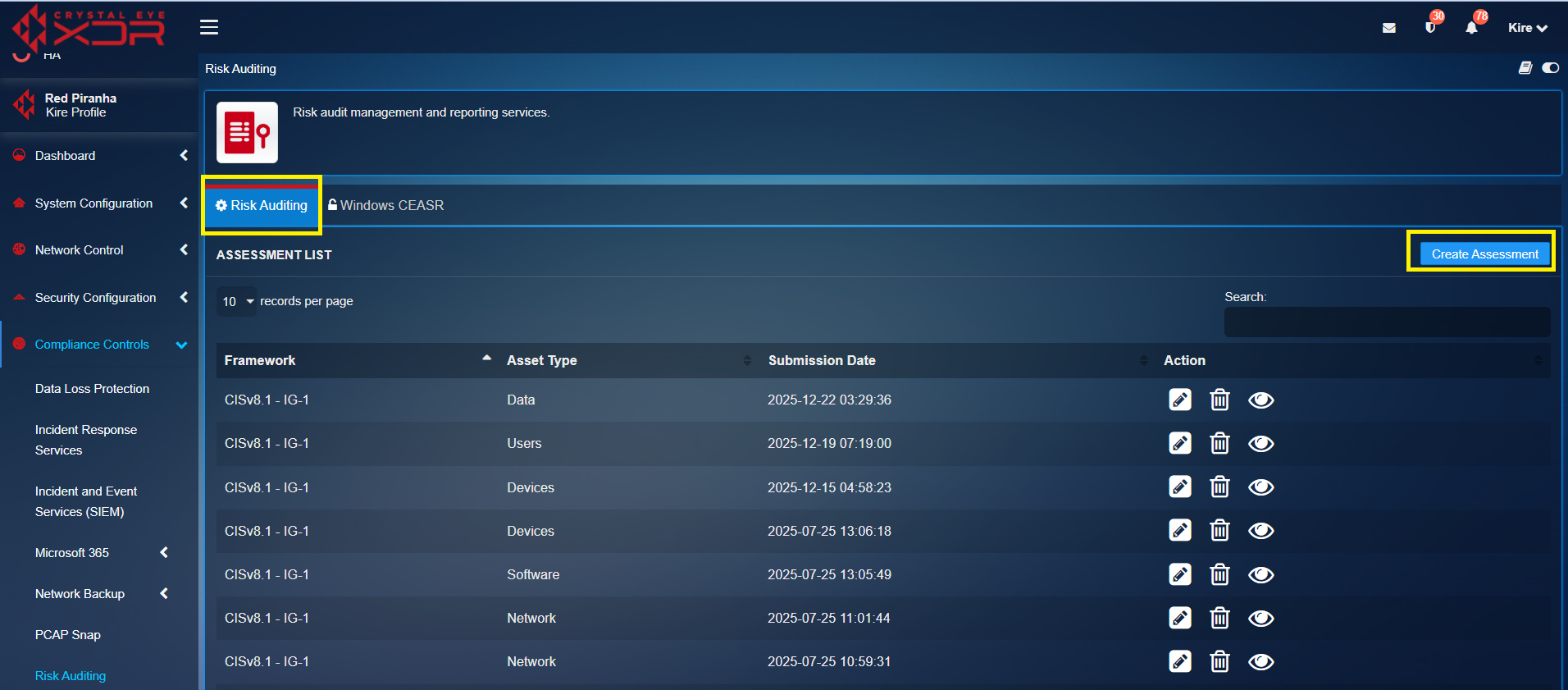
Create Assesment
After selecting "Risk Auditing" option, the Risk Auditing process starts with the option “Create Assessment” on the right part of the screen, presented below. Actually, this option allows users to initiate a comprehensive risk auditing of all asset types in their organisations/institutions such as Network, Data, Software, Users, Devices and Documentation. The user interface of the Risk Auditing feature has enhanced capabilities to tailor the scans as per organisational requirements.
Step 1: Selecting framework
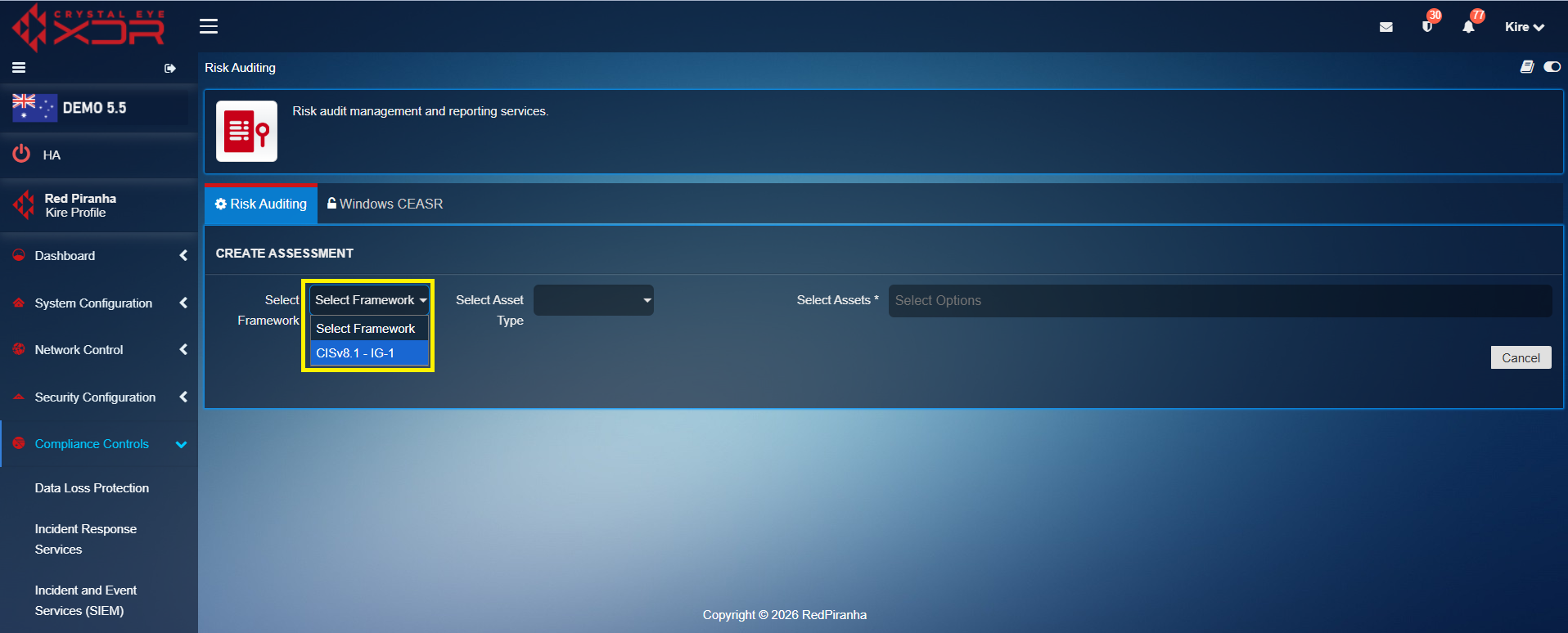
To create assessment, firstly click Select Framework and choose CISv8.1 – IG-1. This framework is aligned with the CIS (Center for Internet Security) Security Controls (v8.1), Implementation Group 1 (IG1), that is defined as Essential Cyber Hygiene. This is minimum set of protections you must have in place to defend your organisation/institution against the most common, non-targeted cyber attacks (like basic phishing or mass-scale ransomware).
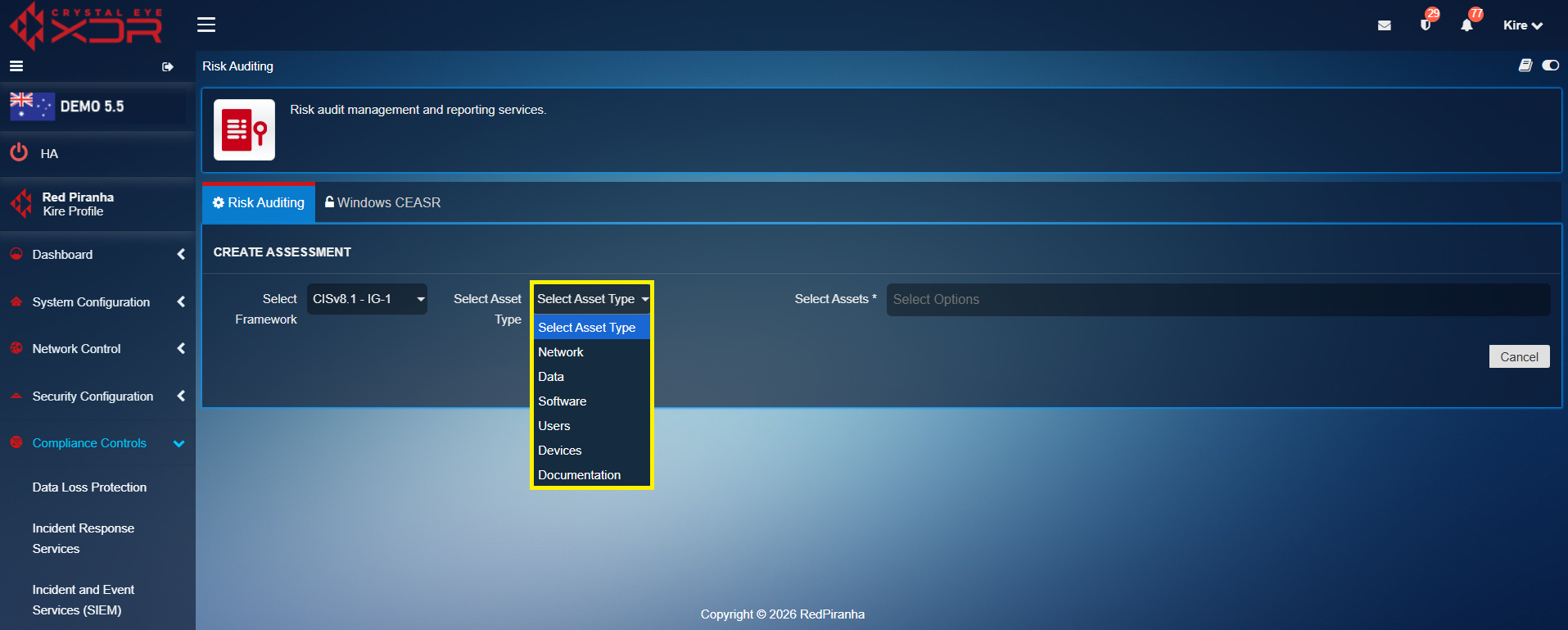
Step 2: Select Asset Type
To select asset type for this round of risk assessment, click Select Asset Type and then choose from one of the 6 asset types: Network, Data, Software, Users, Devices or Documentation.
Step 3: Select Assets
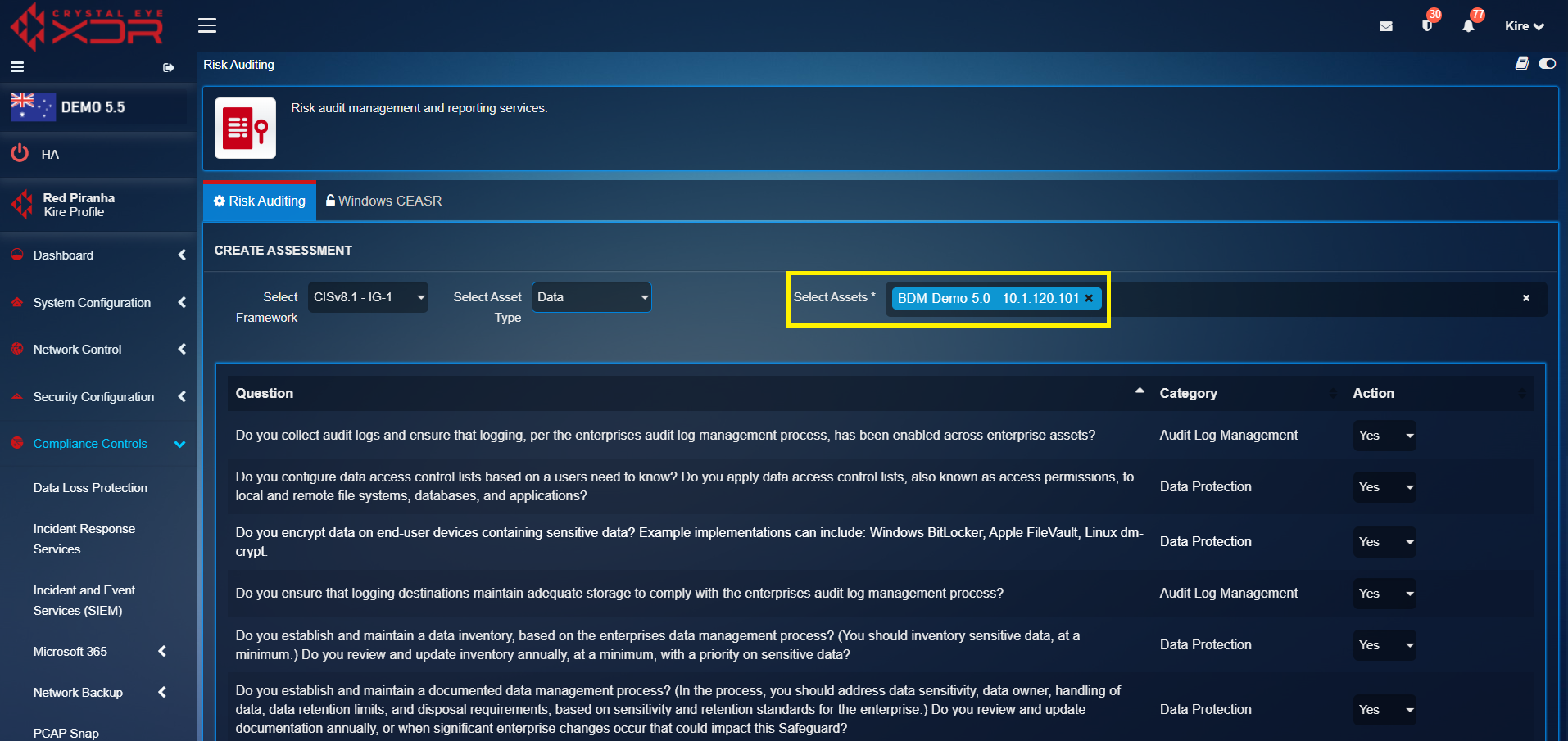
In this example asset type Data is selected. In the field Select Assets all assets mapped and tagged with this asset type are automatically shown.
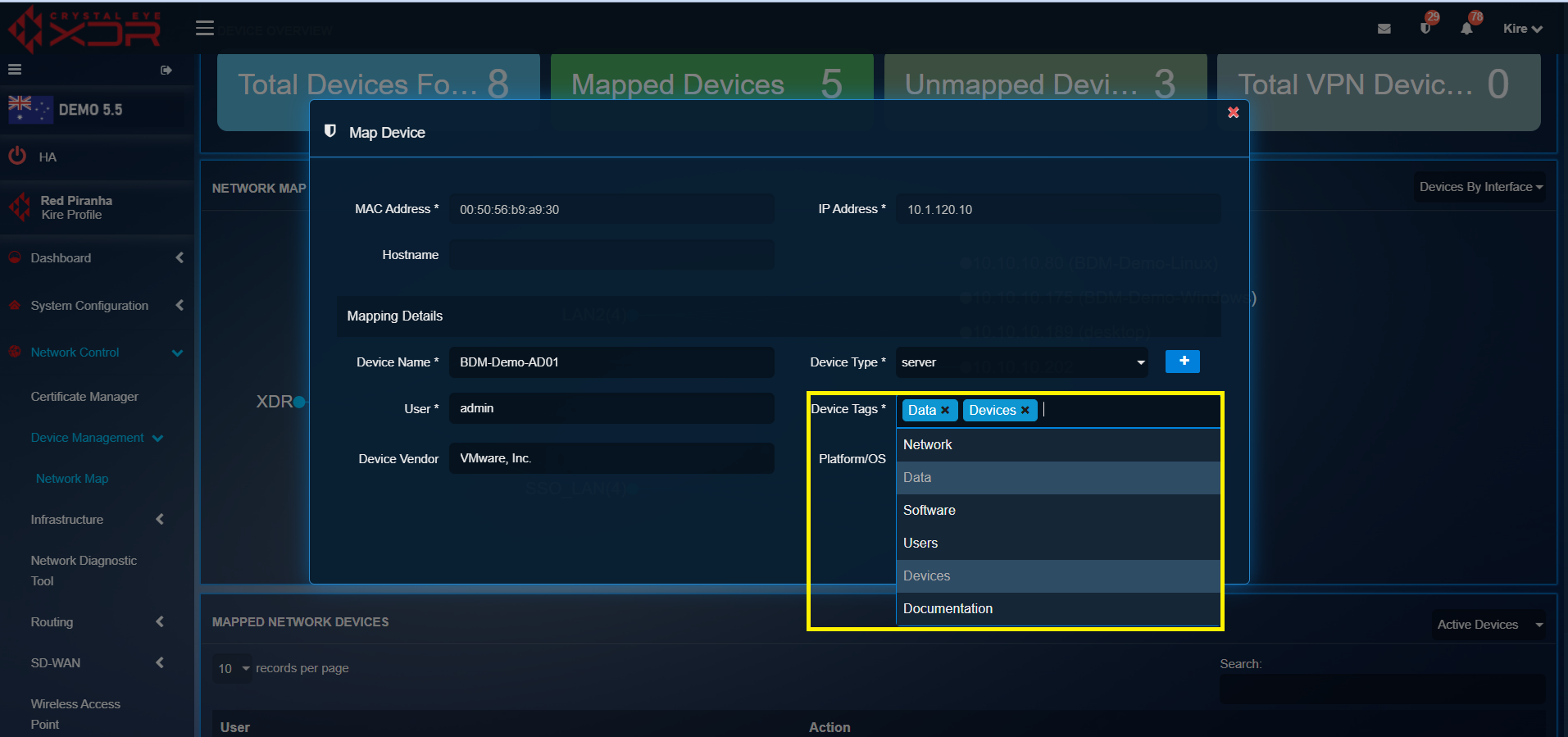
If you found that you miss here some of the devices detected by the firewall that should be included in this assessment, go to the option Network Control→Device Management→Network Map, select the device that you think should be included with its data in this assessment, and in the option Device Tags select Data.
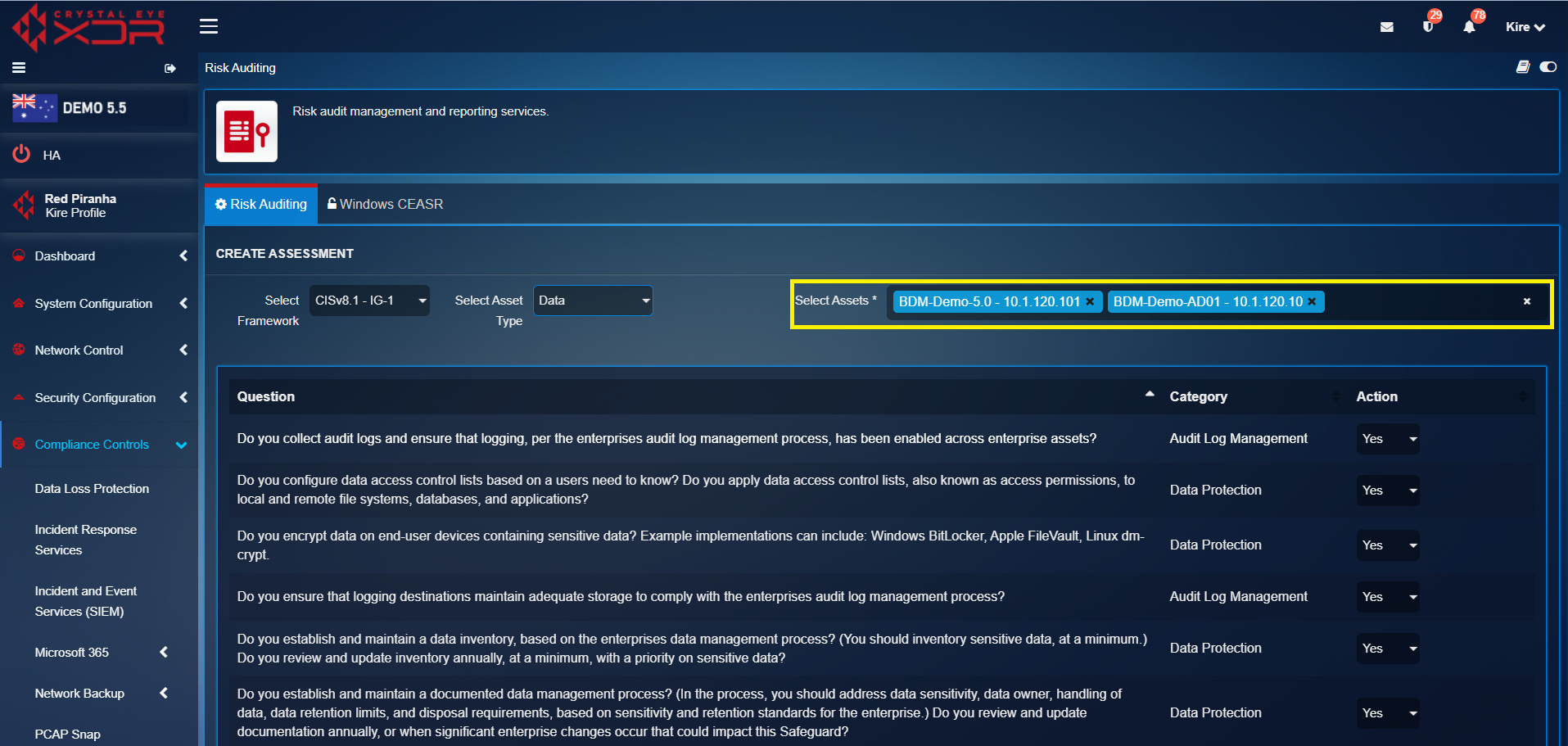
In this example, asset "BDM Demo-AD01 – 10.1.120.10" is added additionally for assessment of the asset type Data.
Step 4: Answering Questions
After clicking "Select Asset Type" in Step 2, questions are generated that are related to the particular asset type that you choose. In this example, asset type Data is selected, and these are the questions that are related to this particular asset type.
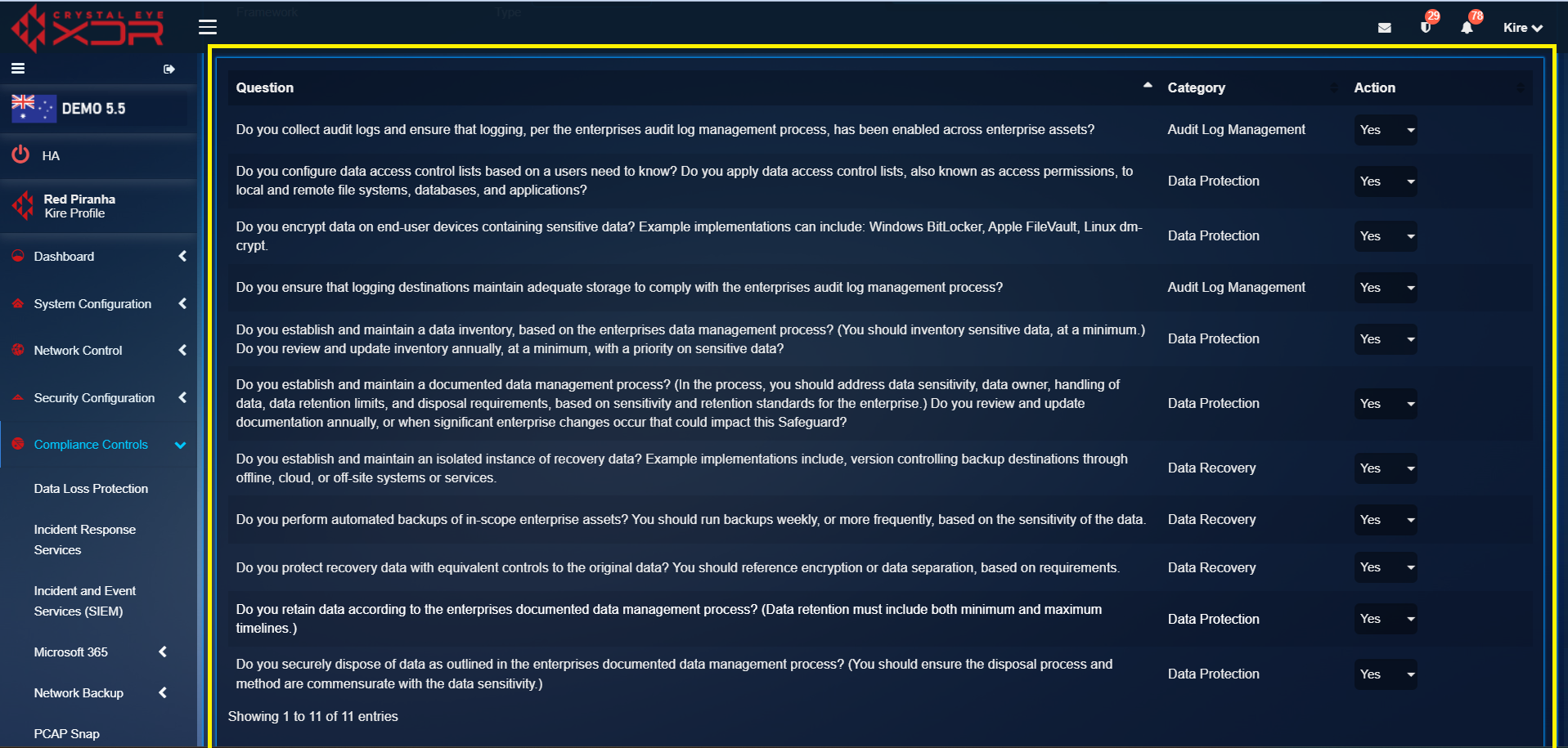
Collaboration: It is highly recommended to perform this with your IT Team to ensure technical accuracy regarding ownership and configurations. Each questions has three options to answer "Yes", "No", or "Partially".
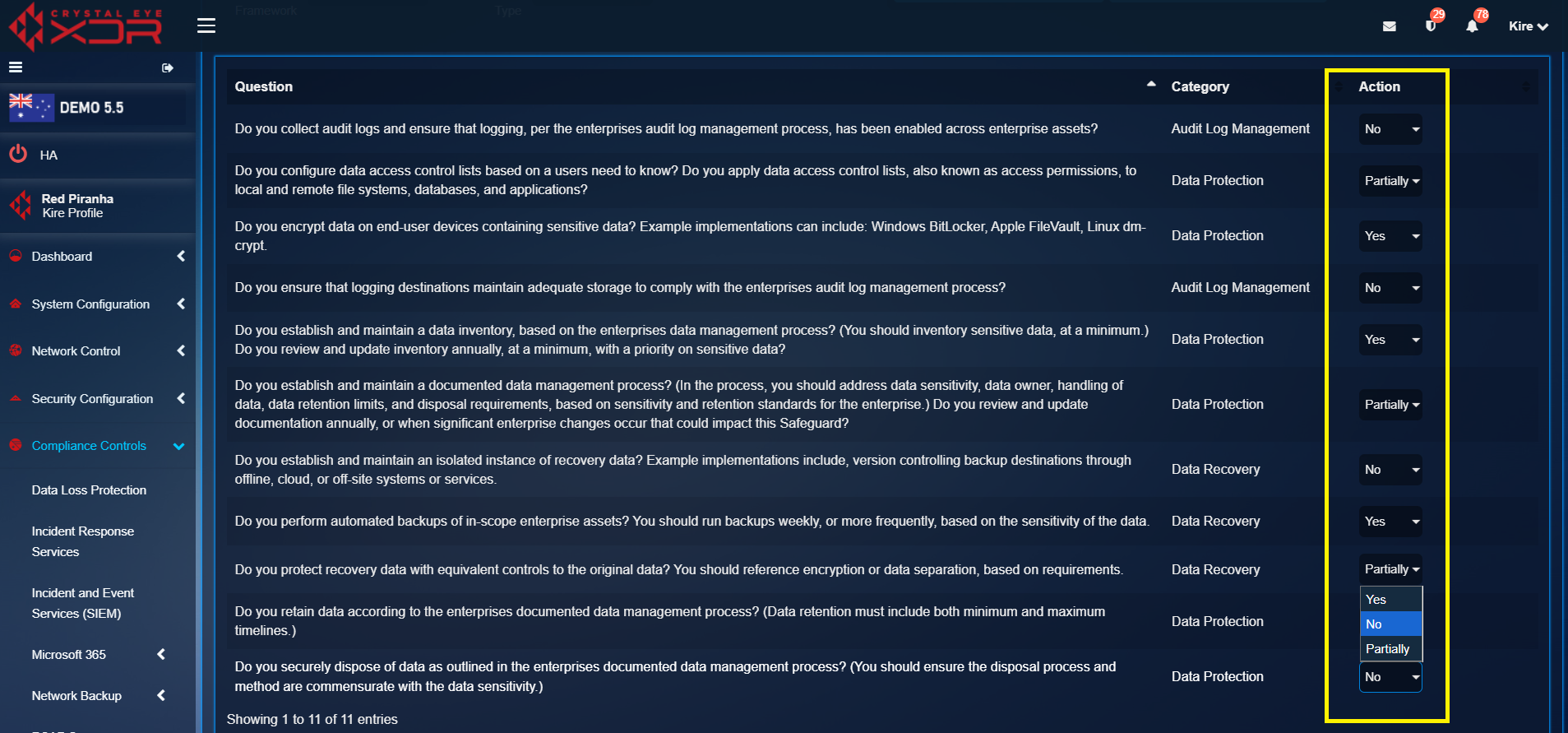
This is related to the Three-Tier Scoring Logic: - Yes: Controls required in the question are fully met (e.g., backups on enterprise assets are done on a weekly basis). - Partially: Backups are done on some assets, but it is not 100% compliant across all selected assets. - No: The control is not implemented.
Step 5: Submitting the answers
After answering all of the questions related to the asset type Data, click on the Submit button at the right-down corner of the screen. This is the final step of the risk auditing feature.
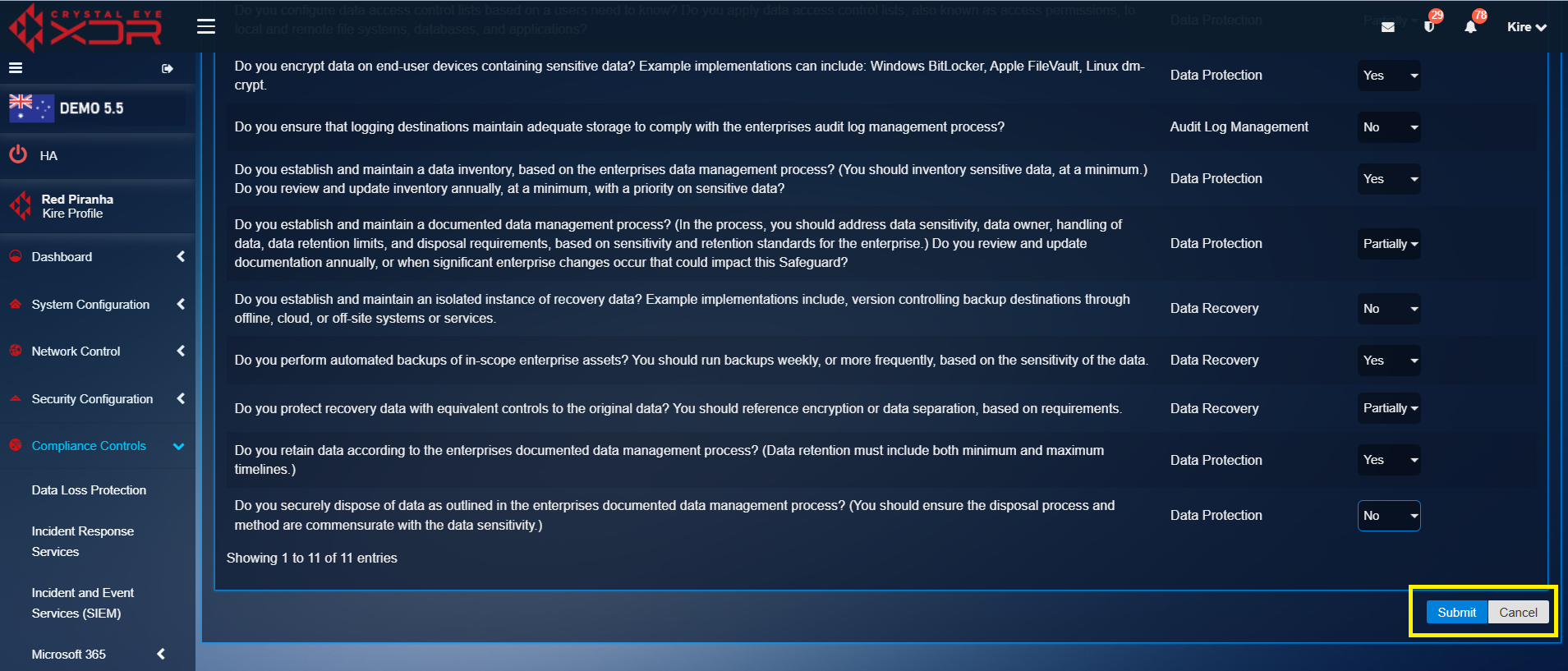
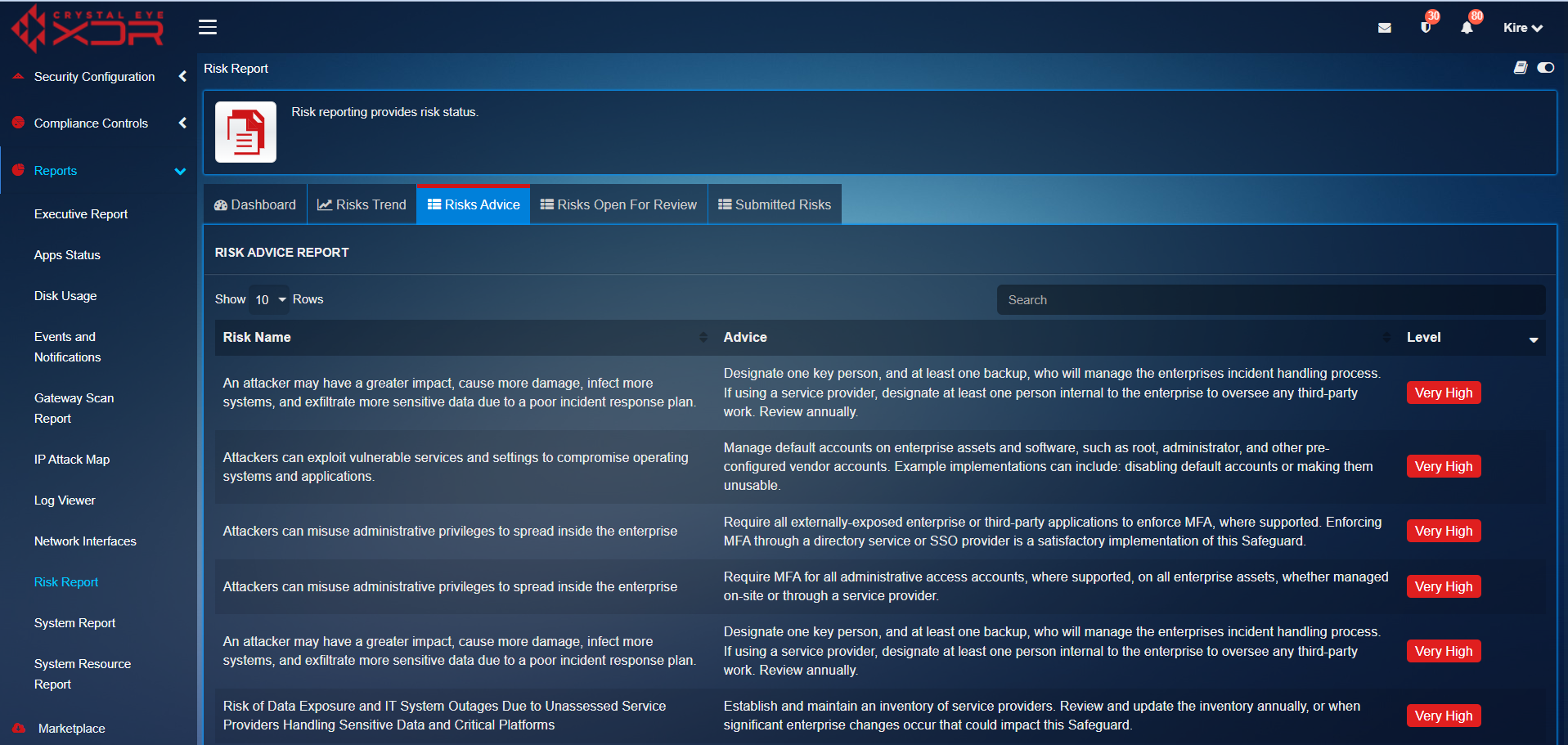
Results of the risk auditing process are automatically generated in the feature Risk Report under the Reports section in the firewall.