Crystal Eye Attack Surface Reduction Application
Overview
The standard Windows deployments often leave systems vulnerable due to their default configurations. Additionally, unmanaged applications can significantly increase security risks, potentially leading to unauthorized access, data breaches, and operational disruptions.
The CEASR (Crystal Eye Attack Surface Reduction) application specifically addresses these critical security gaps by providing: - Windows Hardening: Implementing security measures that significantly reduce vulnerabilities by ensuring secure configurations. - Application Whitelisting: Allowing only authorized and trusted applications to run, thus preventing unauthorized or potentially malicious software from executing.
Dependency Note The Windows CEASR application is only compatible with Windows Enterprise environments. Home or non-enterprise variants of Windows do not support the CEASR feature set and cannot run the CEASR agent with its intended security capabilities.
The Crystal Eye Attack Surface Reduction (CEASR) application ensures devices on your network conform to security policies based on standard security frameworks such as the Australian Signals Directorate's Information Security Manual (ISM) and the Essential Eight guidelines. It also allows CE XDR administrators to apply operating system policies across a range of devices and provide ongoing device monitoring to keep track of your compliance baseline in real-time.
Video Resources
Why CEASR is Different?
Unlike conventional security applications, CEASR seamlessly integrates endpoint security policies defined centrally through the Crystal Eye (CE) platform. It uniquely combines real-time synchronization, comprehensive logging, intuitive analytics, and flexible policy management. CEASR's policy-driven approach simplifies cybersecurity management, ensuring compliance, ease of deployment, and a minimal operational footprint.
This document guides end-users through installing, configuring, and operating the CEASR application.
How CEASR works
Windows CEASR enhances the security of Windows endpoints by providing Windows Hardening and Application Whitelisting. It ensures system integrity by enforcing corporate security policies via JSON-based synchronization between endpoints and the Crystal Eye server (CE).
Using CEASR
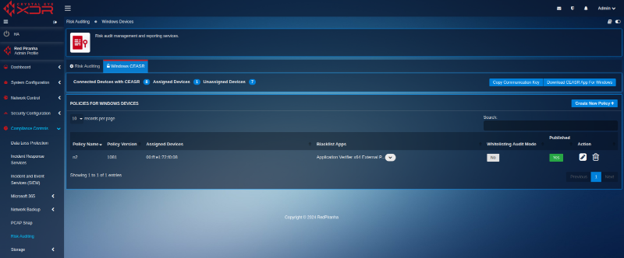
A new tab titled "Windows CEASR" is now added within the Risk Auditing interface to serve as a central location for all CEASR-related operations. This includes the ability to configure, manage, and deploy Windows hardening and application whitelisting policies. The interface is now enhanced to include a dedicated table listing all CEASR policies, displaying key details such as the policy name, version, assigned devices, blacklisted applications, whitelist audit mode status, and whether the policy was published or not. Full support for policy lifecycle management is now implemented. This allows users to create new CEASR policies, edit existing ones, delete obsolete ones, and publish policies to enforce them on connected Windows endpoints. To support client-side deployment, the UI is also updated to include a direct option to download the Windows CEASR agent, ensuring administrators can easily distribute the client application. Additionally, users can copy the required communication key from the interface, which is used during client configuration to securely connect with the Crystal Eye server.
On the endpoint side, the CEASR client app provides a robust interface to implement Windows hardening policies. Users are required to enter credentials to initiate synchronization with CE. A dedicated screen displays all hardening properties in collapsible panels, showing each property’s real-time state and definition.
Only one property can be enabled or disabled at a time. Once the application is running, it collects the current system hardening configuration and sends this data to CE, both during startup and at fixed synchronization intervals. If the app is restarted, it retains server credentials and re-sends the system state, ensuring consistent enforcement. Administrators can push updated policies from CE, and these are enforced on the endpoint through JSON inputs sent via API calls.
For application whitelisting, the CEASR client scans and lists installed applications and sends the results to the CE server. It utilizes Windows Defender Application Control (WDAC) to block unauthorized software. Users can view descriptions of installed applications and identify which are blacklisted according to CE policies. Admins control the enforcement mode, choosing between audit mode (which logs events) or enforced mode (which blocks apps). Endpoint users cannot modify the whitelisting or hardening rules locally; these can only be managed via CE.
Synchronization is an essential part of the CEASR workflow. At startup and at set intervals (e.g., every five minutes), the client collects all configuration data, including MAC address and hostname, and compiles it into a JSON file for transmission to the CE server. Users can also trigger manual synchronization via a button. The client shows synchronization status and displays any validation or communication error messages, allowing easy troubleshooting.
In short, Crystal Eye now delivers comprehensive, centralized management system for Windows hardening and application whitelisting, fully integrated into Crystal Eye’s Risk Auditing App. It supports complete policy lifecycle control, secure endpoint synchronization, and strict administrative governance, providing an enterprise-ready solution for attack surface reduction.
Managing Windows Endpoint Security Policies via the CEASR Tab
The Windows CEASR tab within the Risk Auditing application provides a centralized interface for managing Windows endpoint security policies. This section is designed to help administrators configure, monitor, and deploy CEASR (Crystal Eye Attack Surface Reduction) policies effectively. Below are the key features and functionalities available on this page:
At the top of the tab, device statistics are displayed, showing the number of connected devices, assigned devices, and unassigned devices. This gives users a quick overview of the deployment status across the network.
To facilitate the deployment process, a "Copy Communication Key" button is available. This key is essential during the installation and setup of the CEASR client on Windows endpoints, as it enables secure communication between the endpoint and the Crystal Eye server.
Next, users will find a "Download Windows CEASR Client App" button. Clicking this allows administrators to download the CEASR installer package that needs to be installed on the target Windows systems.
A "Create New Policy" button is also provided, allowing users to define new CEASR policies tailored for Windows endpoint hardening and application whitelisting. Below these controls, the "Policy for Windows Devices" table lists all existing CEASR policies. This table includes the following columns:
-
Policy Name: Displays the name of the policy as defined by the Crystal Eye administrator.
-
Policy Version: Indicates the version of the policy. This value is automatically generated by the Crystal Eye system and is used by the CEASR client to identify and apply the most recent policy.
-
Assigned Devices: Lists the devices that have been assigned to the respective policy.
-
Blacklist Apps: Displays the list of applications that have been blacklisted under the policy.
-
Whitelist Audit Mode: Shows whether the policy is operating in audit mode. A value of "Yes" means the policy has been applied and is being enforced on the endpoint device. A "No" value means the policy is applied in audit-only mode, generating reports without enforcement.
-
Published: Indicates the publication status of the policy. If set to "Yes", the policy has been pushed to all assigned client devices. If set to "No", the policy exists but has not yet been distributed to endpoints.
Lastly, the Action column provides administrative options to Edit, Delete, or Publish each policy. These buttons enable quick modifications, removal, or activation of a selected CEASR policy.
This page acts as the primary dashboard for CEASR management and ensures that security policies are created, updated, and enforced in a structured and user-friendly manner.
Installation and Initial Setup
Step 1: Application Installation
- Download the CEASR application from the provided URL within the CE platform.
- Run the installer and follow the on-screen prompts.
- Once installed, a login screen will appear.
- Enter your CE credentials to synchronize data with the CE server.
- Click the Sync button to start synchronization.
Step 2 Configuring Policies in Crystal Eye (CE) - Policy Creation
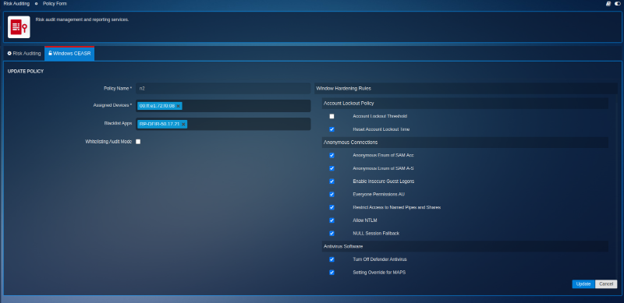
- Navigate to Risk Auditing > Windows CEASR
- Click Create New Policy.
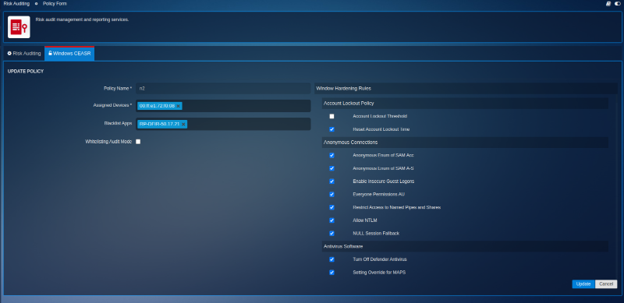
- Fill out the required fields:
- Policy Name (mandatory)
- Assigned Devices (mandatory)
- Blacklist Apps (optional)
- Whitelisting Audit Mode (optional checkbox)
- Window Hardening Rules (optional checkbox; some categories may require additional inputs)
- Save the policy after completing these details.
- Published (Yes/No)
- Actions available:
- Edit: Modify existing policy details.
- Delete: Remove policies that are no longer needed.
- Publish: Activate policies to enforce them on selected devices.
Endpoint Operations
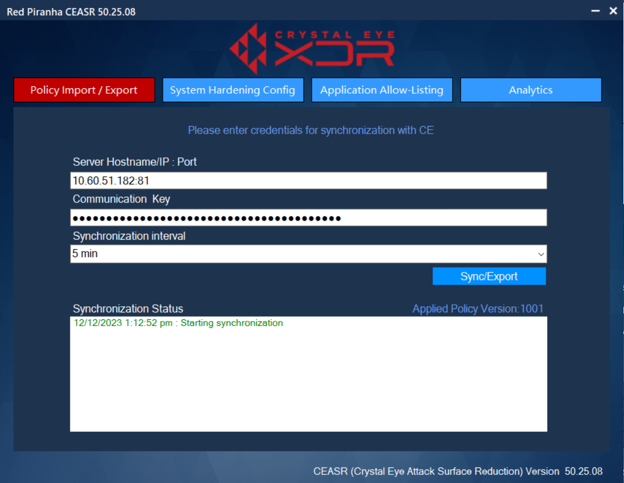
Step 4: Synchronization and Policy Enforcement
- After policy creation or modification, return to the CEASR application on your endpoint.
- Click the Sync button or wait for automatic synchronization based on predefined intervals.
- The application downloads and enforces the Crystal Eye policies. Any synchronization errors will be displayed in real-time.
- Verify all settings match the policy definitions provided by Crystal Eye.
Step 5: Verify Windows Hardening
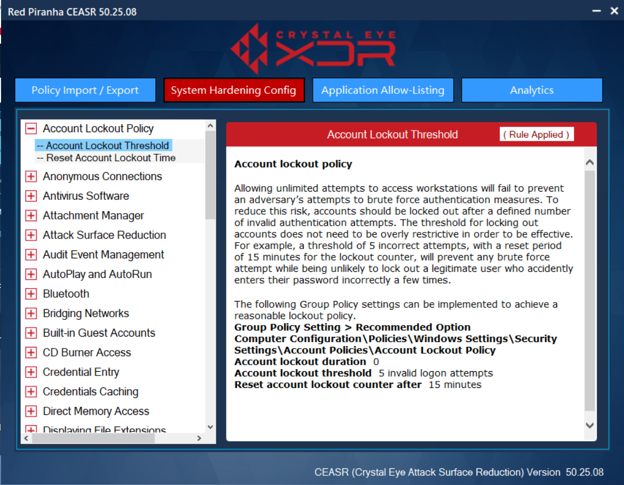
- In the CEASR application, navigate to the Windows Hardening section.
- Ensure all configured properties reflect the policies set from CE.
- Properties are presented in collapsible panels; click to expand and verify each property's current state and details.
Step 6: Verify Application Whitelisting
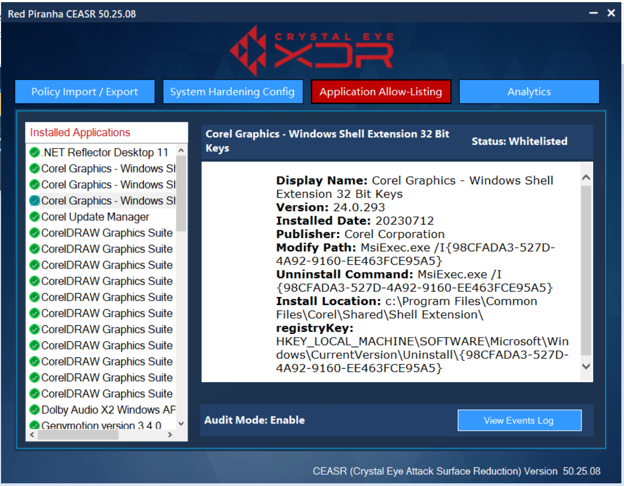
- Navigate to the Application Whitelisting section.
- Verify that the blacklisted and whitelisted applications align with the defined CE policies.
- Check the audit mode settings (if applicable), which log events without enforcing restrictions, allowing validation before strict enforcement.
Analytics and Reporting
Analytics Dashboard
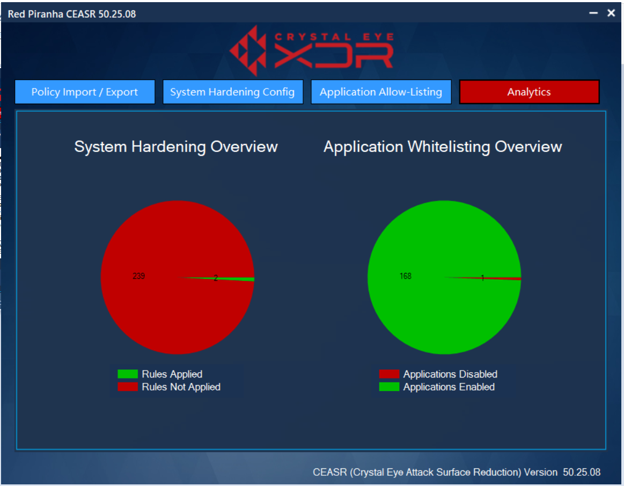
- Access the Analytics dashboard within the CEASR application.
- Provides a graphical summary showing:
- Number of properties enabled
- Number of applications whitelisted
Data and Communication
Data Synchronization
- CEASR compiles data (settings, installed applications, MAC address, hostname) into a JSON format.
- Data synchronization occurs when the application starts, at regular intervals, or manually via the sync button.
- Status messages, validations, or errors in communication are displayed within the application's status box.
Safe Practices
- Window hardening policies exclude settings that could critically impact system access.
- Application whitelisting policies initially run in audit mode, allowing verification before full enforcement.
- Policy removal when the CEASR application is uninstalled, restores endpoint systems to their original state.
Attack Surface Reduction using CEASR end-point application
Attack surface are the areas in the digital stack of the organization that can be targeted by attackers to compromise the devices running in the network. The primary mitigation strategy here must be to reduce the attack surface which leaves the attackers with fewer ways to perform malicious attacks. The CEASR application with its Windows hardening feature can be used to configure attack surface reduction rules and other windows 10 (enterprise) security settings.
The following windows hardening rule categories can be applied using the CEASR application:
Attack Surface Reduction: Attack Surface Reduction (ASR) is a security feature in Microsoft Windows 10 and later that forms part of Windows. It is designed to combat the threat of malware exploiting legitimate functionality in Microsoft Office applications. In order to use ASR, Windows Defender Antivirus must be configured as the primary real-time antivirus scanning engine on workstations. Click here to know how to implement this rule
Credential Caching: Cached credentials are stored in the Security Accounts Manager (SAM) database and can allow a user to log onto a workstation they have previously logged onto even if the domain is not available. Whilst this functionality may be desirable from an availability of services perspective, this functionality can be abused by an adversary who can retrieve these cached credentials (potentially Domain Administrator credentials in a worst-case scenario). To reduce this risk, cached credentials should be limited to only one previous logon. Click here to know how to implement this rule
Elevating Privileges: Microsoft Windows provides the ability to require confirmation from users, via the User Access Control (UAC) functionality, before any sensitive actions are performed. The default settings allow privileged users to perform sensitive actions without first providing credentials and while standard users must provide privileged credentials they are not required to do so via a trusted path on the Secure Desktop. This provides an opportunity for an adversary that gains access to an open session of a privileged user to perform sensitive actions at will or for malicious code to capture any credentials entered via a standard user when attempting to elevate their privileges. To reduce this risk, UAC functionality should be implemented to ensure all sensitive actions are authorised by providing credentials on the Secure Desktop. Click here to know how to implement this rule
Credential Entry: When users enter their credentials on a workstation it provides an opportunity for malicious code, such as a key logging application, to capture the credentials. To reduce this risk, users should be authenticated by using a trusted path to enter their credentials on the Secure Desktop. Click here to know how to implement this rule
Operating System Patching: Patches are released either in response to previously disclosed security vulnerabilities or to proactively address security vulnerabilities that have not yet been publicly disclosed. In the case of disclosed security vulnerabilities, it is possible that exploits have already been developed and are freely available in common hacking tools. In the case of patches for security vulnerabilities that have not yet been publicly disclosed, it is relatively easy for an adversary to use freely available tools to identify the security vulnerability being patched and develop an associated exploit. This activity can be undertaken in less than one day and has led to an increase in 1-day attacks. To reduce this risk, operating system patches and driver updates should be centrally managed and deployed in an appropriate timeframe as determined by the severity of the security vulnerability and any mitigating measures already in place. This can be achieved using Microsoft System Centre Configuration Manager (SCCM) 20. Microsoft Windows Server Update Services (WSUS) 21 can also centrally deploy patches but only for Microsoft applications. For more information on determining the severity of security vulnerabilities and timeframes for applying patches see the Assessing Security Vulnerabilities and Applying Patches publication 22. Click here to know how to implement this rule
Early Launch Antimalware: Another key security feature of Trusted Boot supported by Microsoft Windows 10 and later and motherboards with an Unified Extensible Firmware Interface (UEFI) is Early Launch Antimalware (ELAM) 13. Used in conjunction with Secure Boot, an ELAM driver can be registered as the first non-Microsoft driver that will be initialised on a workstation as part of the boot process, thus allowing it to verify all subsequent drivers before they are initialised. The ELAM driver is capable of allowing only known good drivers to initialise; known good and unknown drivers to initialise; known good, unknown and bad but critical drivers to initialise; or all drivers to initialise. To reduce the risk of malicious drivers, only known good drivers should be allowed to be initialised during the boot process. Click here to know how to implement this rule
Exploit Protection: An adversary that develops exploits for Microsoft Windows or third party applications will have a higher success rate when security measures designed by Microsoft to help prevent security vulnerabilities from being exploited are not implemented. Windows Defender Exploit Guard’s Exploit Protection 14 functionality was introduced in Microsoft Windows 10 and later to provide system-wide and application-specific security measures. Exploit Protection is designed to replace the Enhanced Mitigation Experience Toolkit (EMET) that was used on earlier versions of Microsoft Windows 10. System-wide security measures configurable via Exploit Protection include, Control Flow Guard (CFG), Data Execution Prevention (DEP), mandatory Address Space Layout Randomization (ASLR), bottom-up ASLR, Structured Exception Handling Overwrite Protection (SEHOP) and heap corruption protection. Many more application-specific security measures are also available. Click here to know how to implement this rule
Microsoft Edge: Microsoft Edge is a web browser that was first introduced in Microsoft Windows 10 to replace Internet Explorer. Microsoft Edge contains significant security enhancements over Internet Explorer and should be used wherever possible. Internet Explorer 11’s use should be restricted to supporting any legacy web applications hosted on corporate intranets. If Internet Explorer 11 is not required, it should be uninstalled from Microsoft Windows 10 to reduce the operating system’s attack surface. For organisations using Microsoft Edge instead of third party web browsers, the following Group Policy settings can be implemented to harden Microsoft Edge, including Windows Defender SmartScreen 18. Click here to know how to implement this rule
Anonymous Protection: An adversary can use anonymous connections to gather information about the state of workstations. Information that can be gathered from anonymous connections (i.e. using the net use command to connect to the IPC$ share) can include lists of users and groups, SIDs for accounts, lists of shares, workstation policies, operating system versions and patch levels. To reduce this risk, anonymous connections to workstations should be disabled. Click here to know how to implement this rule
Account Lockout Policy: Allowing unlimited attempts to access workstations will fail to prevent an adversary’s attempts to brute force authentication measures. To reduce this risk, accounts should be locked out after a defined number of invalid authentication attempts. The threshold for locking out accounts does not need to be overly restrictive in order to be effective. For example, a threshold of 5 incorrect attempts, with a reset period of 15 minutes for the lockout counter, will prevent any brute force attempt while being unlikely to lock out a legitimate user who accidently enters their password incorrectly a few times. Click here to know how to implement this rule
Password Policy: The use of weak passwords, such as eight-character passwords with no complexity, can allow them to be brute forced within minutes using applications freely available on the Web. In addition, having no maximum password age can allow an adversary to maintain extended access to a workstation or network once a password has been compromised while having no minimum password age can allow an adversary to recycle passwords if forced to change them due to maximum password ages. To reduce this risk, a secure password policy should be implemented. Click here to know how to implement this rule
Antivirus Software: An adversary can develop malicious code to exploit security vulnerabilities in software not detected and remedied by vendors during testing. As significant time and effort is often involved in the development of functioning and reliable exploits, an adversary will often reuse their exploits as much as possible before being forced to develop new exploits. To reduce this risk, endpoint security applications with signature-based antivirus functionality should be implemented. In doing so, signatures should be updated at least on a daily basis. Whilst using signature-based antivirus functionality can assist in reducing risk, they are only effective when a particular piece of malicious code has already been profiled and signatures are current. An adversary can create variants of known malicious code, or develop new unseen malicious code, to bypass traditional signature-based detection mechanisms. To reduce this risk, endpoint security applications with host-based intrusion prevention functionality, or equivalent functionality leveraging cloud-based services, should also be implemented. In doing so, such functionality should be set at the highest level available. Click here to know how to implement this rule
Powershell: Allowing any PowerShell script to execute exposes a workstation to the risk that a malicious script may be unwittingly executed by a user. To reduce this risk, users should not have the ability to execute PowerShell scripts; however, if using PowerShell scripts is an essential business requirement, only signed scripts should be allowed to execute. Ensuring that only signed scripts are allowed to execute can provide a level of assurance that a script is trusted and has been endorsed as having a legitimate business purpose. For more information on how to effectively implement PowerShell see the Securing PowerShell in the Enterprise publication 29. Click here to know how to implement this rule
Registry Editing Tools: One method for malicious code to maintain persistence (i.e. remain after a workstation is rebooted) is to use administrative privileges to modify the registry (as standard privileges only allow viewing of the registry). To reduce this risk, users should not have the ability to modify the registry using registry editing tools (i.e. regedit) or to make silent changes to the registry (i.e. using .reg files). Click here to know how to implement this rule
Remote Assistance: While Remote Assistance can be a useful business tool to allow system administrators to remotely administer workstations, it can also pose a risk. When a user has a problem with their workstation they can generate a Remote Assistance invitation. This invitation authorises anyone that has access to it to remotely control the workstation that issued the invitation. Invitations can be sent by email, instant messaging or saved to a file. If an adversary manages to intercept an invitation they will be able to use it to access the user’s workstation. Additionally, if network traffic on port 3389 is not blocked from reaching the internet, users may send Remote Assistance invitations over the internet which could allow for remote access to their workstation by an adversary. While Remote Assistance only grants access to the privileges of the user that generated the request, an adversary could install a key logging application on the workstation in preparation of a system administer using their privileged credentials to fix any problems. To reduce this risk, Remote Assistance should be disabled. Click here to know how to implement this rule
Remote Desktop Services: An adversary who gains access to a workstation can use the Command Prompt to execute in-built Microsoft Windows tools to gather information about the workstation or domain as well as schedule malicious code to execute on other workstations on the network. To reduce this risk, users should not have Command Prompt access or the ability to execute batch files and scripts. Should a legitimate business requirement exist to allow users to execute batch files (e.g. cmd and bat files); run logon, logoff, startup or shutdown batch file scripts; or use Remote Desktop Services, this risk will need to be accepted. Click here to know how to implement this rule
Voice Recorder: Sound Recorder is a feature of Microsoft Windows that allows audio from a device with a microphone to be recorded and saved as an audio file on the local hard drive. An adversary with remote access to a workstation can use this functionality to record sensitive conversations in the vicinity of the workstation. To reduce this risk, Sound Recorder should be disabled. Click here to know how to implement this rule
Remote Procedure Call: Remote Procedure Call (RPC) is a technique used for facilitating client and server application communications using a common interface. RPC is designed to make client and server interaction easier and safer by using a common library to handle tasks such as security, synchronisation and data flows. If unauthenticated communications are allowed between client and server applications, it could result in accidental disclosure of sensitive information or the failure to take advantage of RPC security functionality. To reduce this risk, all RPC clients should authenticate to RPC servers. Click here to know how to implement this rule
Reporting System Information: Microsoft Windows contains several in-built functions to, often automatically and transparently, report system information to Microsoft. This includes system errors and crash information as well as inventories of applications, files, devices, and drivers on the system. If captured by an adversary, this information could expose potentially sensitive information on workstations. This information could also subsequently be used by an adversary to tailor malicious code to target specific workstations or users. To reduce this risk, all in-built functions that report potentially sensitive system information should be directed to a corporate Windows Error Reporting server. Click here to know how to implement this rule
Safe Mode: An adversary with standard user credentials that can boot into Microsoft Windows using Safe Mode, Safe Mode with Networking or Safe Mode with Command Prompt options may be able to bypass system protections and security functionality. To reduce this risk, users with standard credentials should be prevented from using Safe Mode options to log in. Click here to know how to implement this rule
Secure Channel Communications: Periodically, workstations connected to a domain will communicate with the domain controllers. If an adversary has access to unprotected network communications they may be able to capture or modify sensitive information communicated between workstations and the domain controllers. To reduce this risk, all secure channel communications should be signed and encrypted with strong session keys. Click here to know how to implement this rule
Server Message Block Sessions: An adversary that has access to network communications may attempt to use session hijacking tools to interrupt, terminate or steal a Server Message Block (SMB) session. This could potentially allow an adversary to modify packets and forward them to a SMB server to perform undesirable actions or to pose as the server or client after a legitimate authentication has taken place to gain access to sensitive information. To reduce this risk, all communications between SMB clients and servers should be signed, with any passwords used appropriately encrypted. Click here to know how to implement this rule
System Cryptography: By default, when cryptographic keys are stored in Microsoft Windows, users can access them without first entering a password to unlock the certificate store. An adversary that compromises a workstation, or gains physical access to an unlocked workstation, can use these user keys to access sensitive information or resources that are cryptographically protected. To reduce this risk, strong encryption algorithms and strong key protection should be used on workstations. Click here to know how to implement this rule
Session Locking: An adversary with physical access to an unattended workstation with an unlocked session may attempt to inappropriately access sensitive information or conduct actions that won’t be attributed to them. To reduce this risk, a session lock should be configured to activate after a maximum of 15 minutes of user inactivity. Click here to know how to implement this rule
Resultant Set of Policy Reporting: By default, all users have the ability to generate Resultant Set of Policy (RSOP) reports which allows them to view the Group Policy settings being applied to their workstation and user account. This information could be used by an adversary to determine misconfigurations or weaknesses in Group Policy settings being applied to the workstation or the user account. To reduce this risk, users should not have the ability to generate RSOP reports. Click here to know how to implement this rule
Windows Remote Management: Windows Remote Management (WinRM) 31 is the Microsoft implementation of the WS-Management Protocol 32 which was developed as a public standard for remotely exchanging management data between devices that implement the protocol. If appropriate authentication and encryption is not implemented for this protocol, traffic may be subject to inception by an adversary. To reduce this risk, Windows Remote Management should be securely configured. Click here to know how to implement this rule
Windows Remote Shell Access: When Windows Remote Shell is enabled it can allow an adversary to remotely execute scripts and commands on workstations. To reduce this risk, Windows Remote Shell should be disabled. Click here to know how to implement this rule
Windows Search and Cortana: As part of the in-built search functionality of Microsoft Windows, users can search for web results in addition to local workstation results. This functionality if used could result in the accidental disclosure of sensitive information if sensitive terms are searched for automatically on the web in addition to the local workstation. To reduce this risk, the ability to automatically search the web should be disabled. Click here to know how to implement this rule
Windows to Go: A feature of Microsoft Windows 10 and later is Windows To Go. Windows To Go allows users to boot into a workspace stored on USB media from any machine that supports the minimum hardware requirements. While this may be highly beneficial for Bring Your Own Device (BYOD) or remote access initiatives, it can also pose a risk to an organisation’s network. Workstations that allow automatic booting of Windows To Go workspaces do not discriminate between approved workspaces and malicious workspaces developed by an adversary. As such, an adversary may use a malicious workspace they have customised with their desired toolkit to attempt to gain access to sensitive information on the network. To reduce this risk, automatic booting of Windows To Go media should be disabled. Click here to know how to implement this rule
Displaying File Extensions: When extensions for known file types are hidden, an adversary can more easily use social engineering techniques to convince users to execute malicious email attachments. For example, a file named vulnerability_assessment.pdf.exe could appear as vulnerability_assessment.pdf to a user. To reduce this risk, hiding extensions for known file types should be disabled. Showing extensions for all known file types, in combination with user education and awareness of dangerous email attachment file types, can help reduce the risk of users executing malicious email attachments. Click here to know how to implement this rule
File and Folder Security Properties: By default, all users have the ability to view security properties of files and folders. This includes the security properties associated with files and folders as well as users and groups that they relate to. An adversary could use this information to target specific accounts that have access to sensitive information. To reduce this risk, users should not have the ability to view security properties of files and folders. Click here to know how to implement this rule
Location Awareness: When users interact with the internet their workstations often automatically provide geo-location details to websites or online services to assist them in tailoring content specific to the user’s geographical region (i.e. the city they are accessing the internet from). This information can be captured by an adversary to determine the location of a specific user. To reduce this risk, location services in the operating system and applications should be disabled. Click here to know how to implement this rule
Microsoft Store: Whilst applications in the Microsoft Store are vetted by Microsoft, there is still a risk that users given access to the Microsoft Store could download and install potentially malicious applications or applications that cause conflicts with other endorsed applications on their workstation. To reduce this risk, access to the Microsoft Store should be disabled. Click here to know how to implement this rule
Publishing Information to the Web: Microsoft Windows has the ability to assist users in either directly publishing information to the Web or sending information to publishers for professional publication. If not disabled, this functionality could result in the accidental or intentional release of sensitive information into the public domain. To reduce this risk, the ability to publish information to the Web or send to publishers should be disabled. The following Group Policy setting can be implemented to disable the ability to publish information to the Web or send it to publishers. Click here to know how to implement this rule
Audit Event Management: Failure to capture and analyse security related audit events from workstations can result in intrusions going unnoticed. In addition, the lack of such information can significantly hamper investigations following a security incident. To reduce this risk, security related audit events from workstations should be captured and routinely analysed. Click here to know how to implement this rule
Attachment Manager: The Attachment Manager within Microsoft Windows works in conjunction with applications such as the Microsoft Office suite and Internet Explorer to help protect workstations from attachments that have been received via email or downloaded from the internet. The Attachment Manager classifies files as high, medium or low risk based on the zone they originated from and the type of file. Based on the risk to the workstation, the Attachment Manager will either issue a warning to a user or prevent them from opening a file. If zone information is not preserved, or can be removed, it can allow an adversary to socially engineer a user to bypass protections afforded by the Attachment Manager. To reduce this risk, the Attachment Manager should be configured to preserve and protect zone information for files. Click here to know how to implement this rule
Autoplay and AutoRun: When enabled, Autoplay will automatically begin reading from a drive or media source as soon as it is used with a workstation, while AutoRun commands, generally in an autorun.inf file on the media, can be used to automatically execute any file on the media without user interaction. This functionality can be exploited by an adversary to automatically execute malicious code. To reduce this risk, Autoplay and AutoRun functionality should be disabled. Click here to know how to implement this rule
Bridging Networks: When workstations have multiple network interfaces, such as an Ethernet interface and a wireless interface, it is possible to establish a bridge between the connected networks. For example, when using an Ethernet interface to connect to an organisation’s wired network and a wireless interface to connect to another non-organisation controlled network such as a public wireless hotspot. When bridges are created between such networks an adversary can directly access the wired network from the wireless network to extract sensitive information. To reduce this risk, the ability to install and configure network bridges between different networks should be disabled. This won’t prevent an adversary from compromising a workstation via the wireless network and then using malicious software as a medium to indirectly access the wired network. This can only be prevented by manually disabling all wireless interfaces when connecting to wired networks. Click here to know how to implement this rule
Built-in Guest Accounts: When built-in guest accounts are used, it can allow an adversary to log onto a workstation over the network without first needing to compromise legitimate user credentials. To reduce this risk, built-in guest accounts should be disabled. Click here to know how to implement this rule
CD Burner Access: If CD burning functionality is enabled, and CD burners are installed in workstations, an adversary may attempt to steal sensitive information by burning it to CD. To reduce this risk, users should not have access to CD burning functionality except when explicitly required. Click here to know how to implement this rule
Command Prompt: An adversary who gains access to a workstation can use the Command Prompt to execute in-built Microsoft Windows tools to gather information about the workstation or domain as well as schedule malicious code to execute on other workstations on the network. To reduce this risk, users should not have Command Prompt access or the ability to execute batch files and scripts. Should a legitimate business requirement exist to allow users to execute batch files (e.g. cmd and bat files); run logon, logoff, startup or shutdown batch file scripts; or use Remote Desktop Services, this risk will need to be accepted. Click here to know how to implement this rule
Direct Memory Access: Communications interfaces that use Direct Memory Access (DMA) can allow an adversary with physical access to a workstation to directly access the contents of a workstation’s memory. This can be used to read sensitive contents such as cryptographic keys or to write malicious code directly into memory. To reduce this risk, communications interfaces that allow DMA (e.g. FireWire and Thunderbolt) should be disabled. This can be achieved either physically (e.g. using epoxy) or by using software controls [27] (e.g. disabling the functionality in the BIOS or UEFI; removing the SBP-2 driver and disabling the Thunderbolt controller; or using an end point protection solution). Click here to know how to implement this rule
Hard Drive Encryption: An adversary with physical access to a workstation may be able to use a bootable CD/DVD or USB media to load their own operating environment. From this environment, they can access the local file system to gain access to sensitive information or the SAM database to access password hashes. In addition, an adversary that gains access to a stolen or unsanitised hard drive will be to recover its contents when connected to another machine on which they have administrative access and can take ownership of files. To reduce this risk, 256-bit AES full disk encryption should be used to protect the contents of hard drives from unauthorised access. Click here to know how to implement this rule
File and Print Sharing: Users sharing files from their workstations can result in a lack of appropriate access controls being applied to sensitive information and the potential for the propagation of malicious code should file shares have read/write access. To reduce this risk, local file and print sharing should be disabled. Ideally, sensitive information should be centrally managed (e.g. on a network share with appropriate access controls). Disabling file and print sharing will not affect a user’s ability to access shared drives and printers on a network. Click here to know how to implement this rule
Endpoint Device Control: An adversary with physical access to a workstation may attempt to connect unauthorised USB media or other devices with mass storage functionality (e.g. smartphones, digital music players or cameras) to facilitate malicious code infections or the unauthorised copying of sensitive information. To reduce this risk, endpoint device control functionality should be appropriately implemented to control the use of all removable storage devices. Click here to know how to implement this rule
Group Policy Processing: Relying on users to set Group Policy settings for their workstations creates the potential for users to inadvertently misconfigure or disable security functionality without consideration of the impact on the security posture of the workstation. Alternatively, an adversary could exploit this to disable any Local Group Policy settings that are hampering their efforts to extract sensitive information. To reduce this risk, all audit, user rights and security related Group Policy settings should be specified for workstations at an organisational unit or domain level. To ensure these policies aren’t weakened, support for Local Group Policy settings should also be disabled. Click here to know how to implement this rule
Installing Applications: While the ability to install applications may be a business requirement for users, this privilege can be exploited by an adversary. An adversary can email a malicious application, or host a malicious application on a compromised website, and use social engineering techniques to convince users into installing the application on their workstation. Even if privileged access is required to install applications, users will use their privileged access if they believe, or can be convinced that, the requirement to install the application is legitimate. Additionally, if applications are configured to install using elevated privileges, an adversary can exploit this by creating a Windows Installer installation package to create a new account that belongs to the local built-in administrators group or to install a malicious application. To reduce this risk, all application installations should be strictly controlled. Click here to know how to implement this rule
Internet Printing: Microsoft Windows can print to internet printers over HTTP. If not disabled, this functionality could result in the accidental or intentional release of sensitive information into the public domain. To reduce this risk, internet printing should be disabled. Click here to know how to implement this rule
Legacy and Run Once Lists: Once malicious code has been copied to a workstation, an adversary with registry access can remotely schedule it to execute (i.e. using the run once list) or to automatically execute each time Microsoft Windows starts (i.e. using the legacy run list). To reduce this risk, legacy and run once lists should be disabled. This may interfere with the operation of legitimate applications that need to automatically execute each time Microsoft Windows starts. Click here to know how to implement this rule
Microsoft Accounts: A feature of Microsoft Windows 10 and later is the ability to link Microsoft accounts (formerly Windows Live IDs) to local or domain accounts. When this occurs, a user’s settings and files are stored in the cloud using OneDrive rather than locally or on a domain controller. While this may have the benefit of allowing users to access their settings and files from any workstation (e.g. corporate workstation, home PC, internet cafe) it can also pose a risk to an organisation as they lose control over where sensitive information may be accessed from. To reduce this risk, users should not link Microsoft accounts with local or domain accounts. Click here to know how to implement this rule
Network Authentication: Cached credentials are stored in the Security Accounts Manager (SAM) database and can allow a user to log onto a workstation they have previously logged onto even if the domain is not available. Whilst this functionality may be desirable from an availability of services perspective, this functionality can be abused by an adversary who can retrieve these cached credentials (potentially Domain Administrator credentials in a worst-case scenario). To reduce this risk, cached credentials should be limited to only one previous logon. Click here to know how to implement this rule
NoLMHash Policy: When Microsoft Windows hashes a password that is less than 15 characters, it stores both a LAN Manager hash (LM hash) and Windows NT hash (NT hash) in the local SAM database for local accounts, or in Activity Directory for domain accounts. The LM hash is significantly weaker than the NT hash and can easily be brute forced. To reduce this risk, the NoLMHash Policy should be implemented on all workstations and domain controllers. As the LM hash is designed for authentication of legacy Microsoft Windows operating systems, such as those prior to Microsoft Windows 2000, there shouldn’t be a business requirement for its use except in very rare circumstances. Click here to know how to implement this rule
Power Management: One method of reducing power usage by workstations is to enter a sleep, hibernation or hybrid sleep state after a pre-defined period of inactivity. When a workstation enters a sleep state it maintains the contents of memory while powering down the rest of the workstation; with hibernation or hybrid sleep, it writes the contents of memory to the hard drive in a hibernation file (hiberfil.sys) and powers down the rest of the workstation. When this occurs, sensitive information such as encryption keys could either be retained in memory or written to the hard drive in a hibernation file. An adversary with physical access to the workstation and either the memory or hard drive can recover the sensitive information using forensic techniques. To reduce this risk, sleep, hibernation and hybrid sleep states should be disabled. Click here to know how to implement this rule