M365 Policy Manager
Managing Microsoft Entra-ID (formerly Azure AD) tenants across multiple clients or environments is a complex, fragmented task for administrators. Logging into separate tenant portals, managing conditional access policies, users, and groups, and maintaining policy consistency across tenants can be time-consuming and error prone.
The Entra-ID Management feature within the Crystal Eye (CE) platform solves this by integrating Microsoft 365 Policy Management into a centralized interface. It enables CE administrators to securely manage users, groups, and conditional access policies across multiple Entra-ID tenants with ease. It also enforces Microsoft security best practices, improves operational efficiency, and reduces misconfiguration risks.
How Does the App Work?
The solution includes an app on CE called M365 Policy Manager, which communicates securely with a corresponding application on the Microsoft Entra-ID side via Microsoft Graph REST APIs. It allows for tenant configuration, identity management, policy controls, and synchronization of settings from a single dashboard.
Configure & Register API Permissions
Step 1: Add API permissions to application
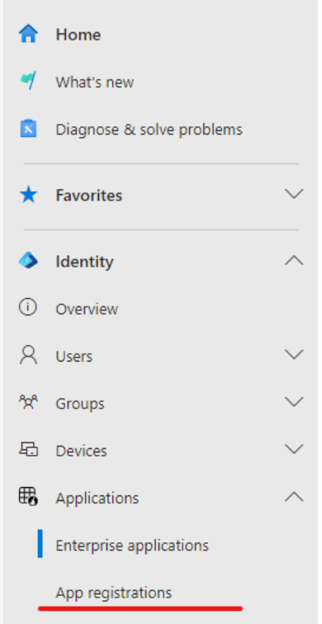
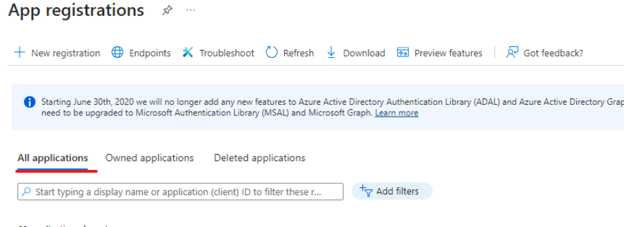
On the admin blade select "App registration", all applications and search for the application you have just created as below:
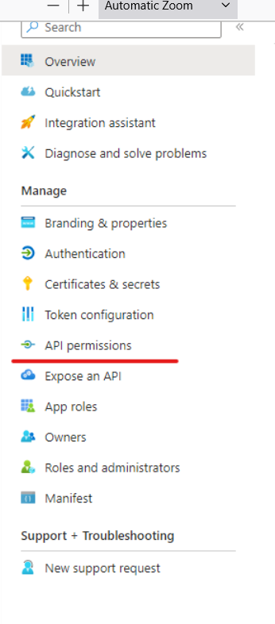
Open the application and select "API permission" from the blade as below:
Click Add permission
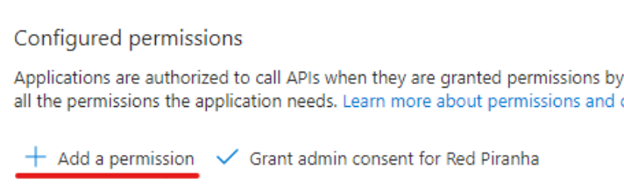
Microsoft Graph - Application.Read.All - CrossTenantInformation.ReadBasic.All - Directory.Read.All - EntitlementManagement.ReadWrite.All - Group.ReadWrite.All - GroupMember.ReadWrite.All - Policy.Read.All - Policy.ReadWrite.ConditionalAccess - Policy.ReadWrite.SecurityDefaults - User.ReadWrite.All - Office 365 Management APIs - ActivityFeed.Read - ActivityFeed.ReadDlp - ServiceHealth.Read
Once All Api Permissions are Added Click Grant admin consent for [Your Tenant]
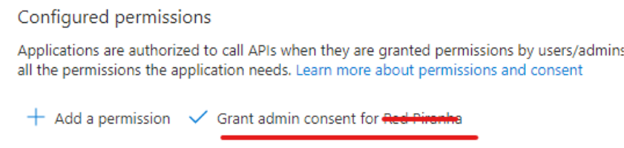
Step 2: Create New Client Secret
In App registrations Click Certificates & Secrets.
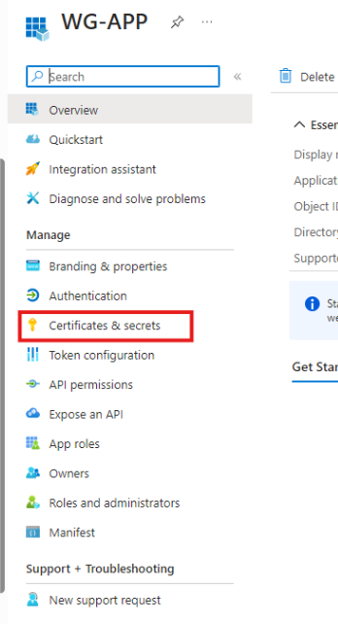
Then click New Client Secret.
Enter a Description related to the App and select an Expiration.
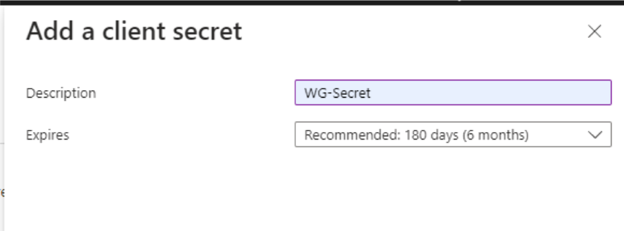
Note: It’s recommended to set the Expiry to 6 months, and client Secret rotation will need to be work into your maintenance routine.
Keep this page open as the Value will need to be copied into the Crystal Eye.
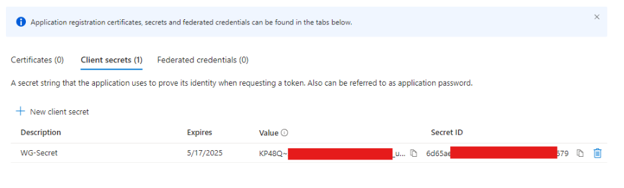
Note: Clicking off this page in Entra ID will make it impossible to view the Secret ID again, and another will need to be created.
Step 3: Add settings to M365 policy manager in Crystal Eye
Open your Crystal Eye admin panel and browse to "Compliance Control" > "Microsoft 365" > M365 Policy Manager
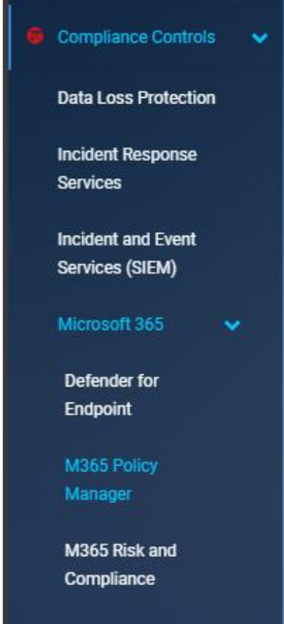
Click Add to create a new profile

Fill in all fields as they appear in the Entra portal
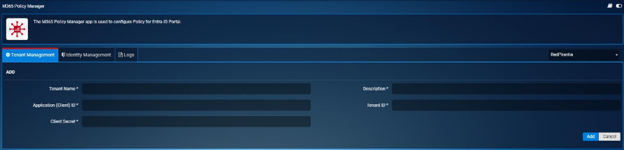
Client Secret being the Value from the previous page. Application ID and Tenant ID can be found in the Overview section of the App Registration

Once all the Information has been entered Click Enable Tenant
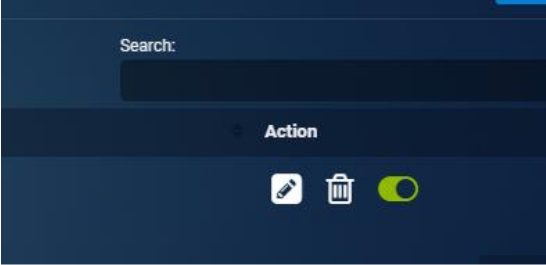
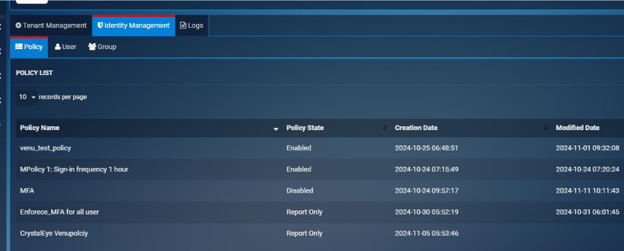
To Test Crystal Eye is Connected to Entra click the Identity Management Tab
If Policy’s Users and Groups load this confirms the Crystal Eye is configured Correctly
End-User Step-by-Step Guide
1. Accessing the M365 Policy Manager App
- Log in to the Crystal Eye Admin Portal.
- Navigate to Compliance Controls > Microsoft 365 > M365 Policy Manager.
Admins often deal with disparate tools and portals to access tenant controls. This fragmentation leads to delays, errors, and operational inefficiencies.
By integrating directly into the Crystal Eye Admin Portal under Compliance Controls, CE provides a central, secure entry point to manage Entra-ID policies, eliminating the need to move between multiple Microsoft portals. This saves time and simplifies workflows.
2. Managing Tenants
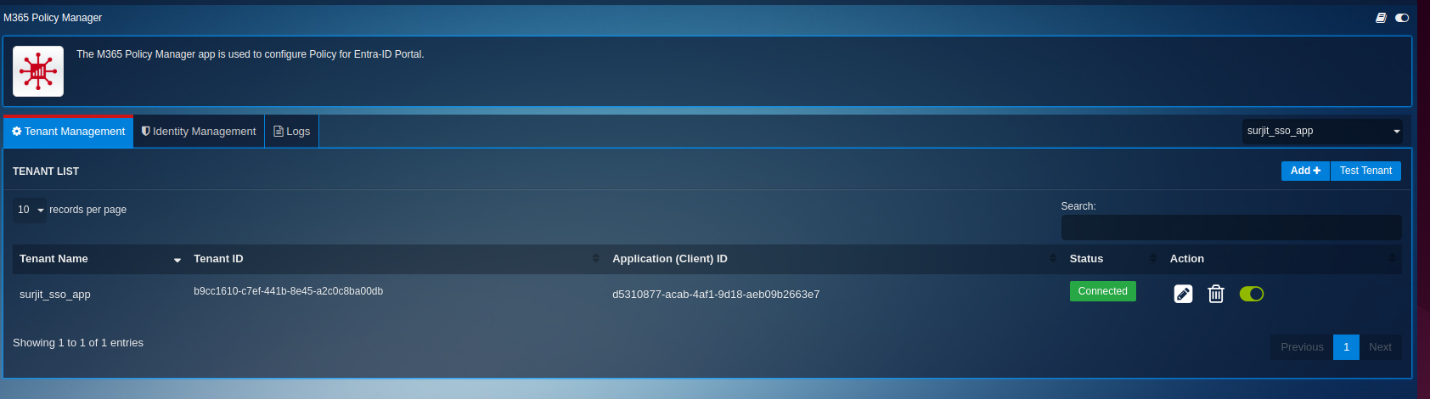
- Go to the Tenant Management tab.
- To add a new tenant, click Add Tenant and provide:
- Name
- client_id
- client_secret
- tenant_id
- You can also view, edit, delete tenants and test tenant credentials.
- Tenant status is shown for each entry.
3. User and Group Management
- Navigate to the Identity Management tab.
- Click Users to view all users in the selected tenant.
- Click Groups to view all groups in the selected tenant.
User and group sprawl can introduce identity chaos, especially in environments with shadow IT or delegated admin errors. Switching between tenants to manually review users/groups is error-prone.
The Identity Management tab allows centralized visibility into users and groups across all connected tenants. This aids in consistent identity governance, rapid threat response, and ensures that identity hygiene is maintained.
4. Policy Management
- Under Policies, view all Conditional Access Policies for the selected tenant.
- Use the Create New Policy button:
- Choose from predefined templates (e.g., require MFA for admins, block legacy auth).
- Or create a Custom Policy:
- Note: Custom policies will be prefixed with 'CrystalEye'.
- By default, policies are created in Report Only mode.
Enforcing Microsoft security best practices across multiple tenants is not scalable manually. Policies like MFA enforcement or blocking legacy auth are critical but often neglected due to oversight or lack of automation.
CE introduces predefined templates for conditional access policies and allows for custom policy creation, prefixed with 'CrystalEye' to distinguish managed policies. Policies are safely created in Report Only mode first to avoid disruptions, encouraging secure rollout. This ensures security posture consistency across all tenants.
5. Synchronization and Global Settings
- Go to the Global Settings tab.
- Configure how often CE should sync users/groups with the Entra-ID tenant.
- Set "Sync Users and Groups Every" in minutes (5 to 43200).
- Default: 60 minutes.
- Use the Sync Users & Groups button to manually initiate a sync.
Manually syncing users and groups across tenants can lead to outdated configurations and unauthorized access lingering in the environment.
CE’s automated synchronization settings allow admins to schedule how frequently user and group data is refreshed, with the option to manually trigger syncs when needed. This ensures up-to-date identity information and supports timely incident response.
6. Logging and Activity Tracking
- All tenant configuration and app-level actions (create/edit/delete) are logged.
- Logs can be accessed via the Log Viewer under CE’s logging module.
Lack of visibility into configuration changes and app activities makes forensic analysis and compliance auditing difficult.
The app logs all administrative actions such as tenant edits, policy changes, and syncs allowing traceability and compliance with audit standards. Logs are accessible via CE’s unified Log Viewer, streamlining evidence collection during reviews or incidents.
7. Security and Access
- Only CE root or admin users can access the M365 Policy Manager.
- On the Entra-ID side, an app must be created with appropriate Microsoft Graph API permissions (User.Read.All, Policy.ReadWrite.ConditionalAccess, etc.).
- App credentials must be securely shared with CE.
Improper role-based access or insecure app integrations with Microsoft Graph APIs can introduce privilege escalation or data exposure risks. Only CE root/admin users can access the app, and Microsoft Graph integration requires explicit permission grants (e.g., Policy.ReadWrite.ConditionalAccess), ensuring principle of least privilege is maintained. This reduces insider risk and unauthorized tampering.
With the M365 Policy Manager App, Crystal Eye empowers administrators to manage Entra-ID tenants centrally and securely. From automating policy creation to enforcing compliance standards and minimizing manual configuration errors, this app streamlines identity and access management for modern enterprises.